titanfall_research
How to change your FOV to greater than 90°
This is version 1.0 of the guide. It contains no special tools and no automatic patches. Everything is done via the toolkit you should have for working with Titanfall.
Titanfall’s Default FOV
Titanfall 1 has an FOV range, by default, of 70° to 90°. The internal FOV of Pilots is 70°, with the Settings menu allowing you to increase the FOV by 20° from the internal value (regardless of the internal value). Titans have 5° more viewable area than Pilots do - their minimum is 75°, which means that their maximum is 95° - if you set your FOV to 90° in the settings menu, your Titan FOV will be 95°, 89° will be 94°, etc. It’s not easily possible to increase the range beyond 20°, so instead we will be changing the minimum stepping so the maximum FOV is greater.
Getting Started
First you will need the standard toolkit. If you don’t know what that means, I’ve got it listed here.
We’re going to start by opening the VPK Tool, and going to the toolbar options Tools > Settings. Uncheck both of the Patch options for VTF textures and WAV audio - repacking patched files will result in both visual and auditory issues, such as audio not playing back correctly (or, in some cases, at all). The option to patch textures and audio are not for repacking, but use outside of Titanfall.
We’re going to start by extracting the VPK for mp_common. VPKs are located in the vpk folder in the Titanfall install directory, which is by default C:\Program Files (x86)\Origin Games\Titanfall\vpk\. If you’ve changed where Origin installs games, or where Titanfall specifically is installed, it will be in the vpk subdirectory there. To know which file we’re opening with the VPK Tool, you need to know what language you’re going to play the game in. For English, the file we’re looking for is englishclient_mp_common.bsp.pak000_dir.vpk. You can change the language you play in in case you would prefer to use one other than what Origin defaults to. Open the respective file for your chosen language:
englishclient_mp_common.bsp.pak000_dir.vpk
frenchclient_mp_common.bsp.pak000_dir.vpk
germanclient_mp_common.bsp.pak000_dir.vpk
italianclient_mp_common.bsp.pak000_dir.vpk
japaneseclient_mp_common.bsp.pak000_dir.vpk
koreanclient_mp_common.bsp.pak000_dir.vpk
polishclient_mp_common.bsp.pak000_dir.vpk
portugueseclient_mp_common.bsp.pak000_dir.vpk
russianclient_mp_common.bsp.pak000_dir.vpk
spanishclient_mp_common.bsp.pak000_dir.vpk
tchineseclient_mp_common.bsp.pak000_dir.vpk
Once you have the file open, select the folder icon second from the right on the icon toolbar (Extract All). Extract the entire VPK to a directory that doesn’t contain anything. It should be on a hard drive that has around 30GB of free space, as the extraction will decompress files that are compressed in the VPKs. The extraction process can take some time - there are a lot of files.
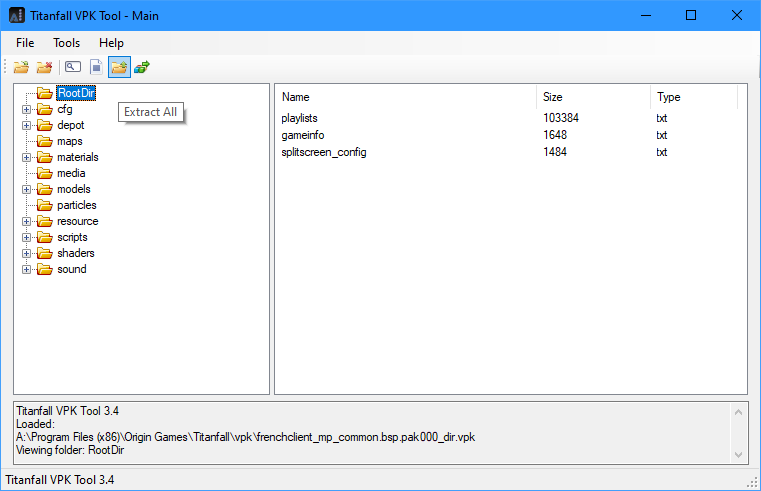
The option to Extract all.
Preventing errors
Before we can change the FOV values, we have to correct a single file that exports as empty (it shouldn’t be empty), or else the repacked VPK will be incorrect. From now on, all directories will be related to how they are in the mp_common VPK. This means that scripts is the scripts folder from where you extracted the mp_common VPK, for example D:\englishclient_mp_common\scripts. The file we need to edit first is scripts\vscripts\weapons\mp_projectile_frag_grenade.nut. The contents of the file should look like this instead of being blank:
function OnProjectileCollision( collisionParams )
{

}
Just copy and paste the code block into the file, then save it.
Changing the FOV values
Now we can start changing the values related to the player’s FOV. All files related to this are stored in scripts\players\mp\. You can edit all the files if you want, but only the following need to be edited:
pilot_female_br.set
pilot_female_cq.set
pilot_female_dm.set
pilot_male_br.set
pilot_male_cq.set
pilot_male_dm.set
pilot_spectre.set
pilot_titan_cockpit.set
titan_atlas.set
titan_ogre.set
titan_stryder.set
Note that the training files are likely used only for training; pilot_female_quickdraw and both fastest classes may be unused. titan_ctt is not used, model_viewer is disabled and requires a dev build, while changes to the FOV in lobby_view have no effect. pilot_spectre is used when the player uses the Spectre Camo Burn Card, and pilot_titan_cockpit should take in effect when the player interacts with the titan (possibly during embark and when being executed). br, cq, dm and fastest are models based on which weapon class the Pilot has equipped. br should be for Rifles (R-101C, CAR, Hemlok, Spitfire), cq should be for Close Quarters (Smart Pistol, EVA-8, R-97) and dm for Marksman (G2, Longbow DMR, Kraber). Different values between these classes (and the respective titan class files) will produce different FOVs depending on which weapon you spawn with as a pilot (ie, what class you spawn as) and which titan you pilot.
Weapon Model FOV
Weapon model FOV is independent of your actual vision - it changes how the weapon on screen is rendered. Extremely high fields of view will cause parts of the weapon not intended to be seen to render on screen. You may choose to increase the weapon model FOV even if you prefer to play at the stock cap of 90° FOV.
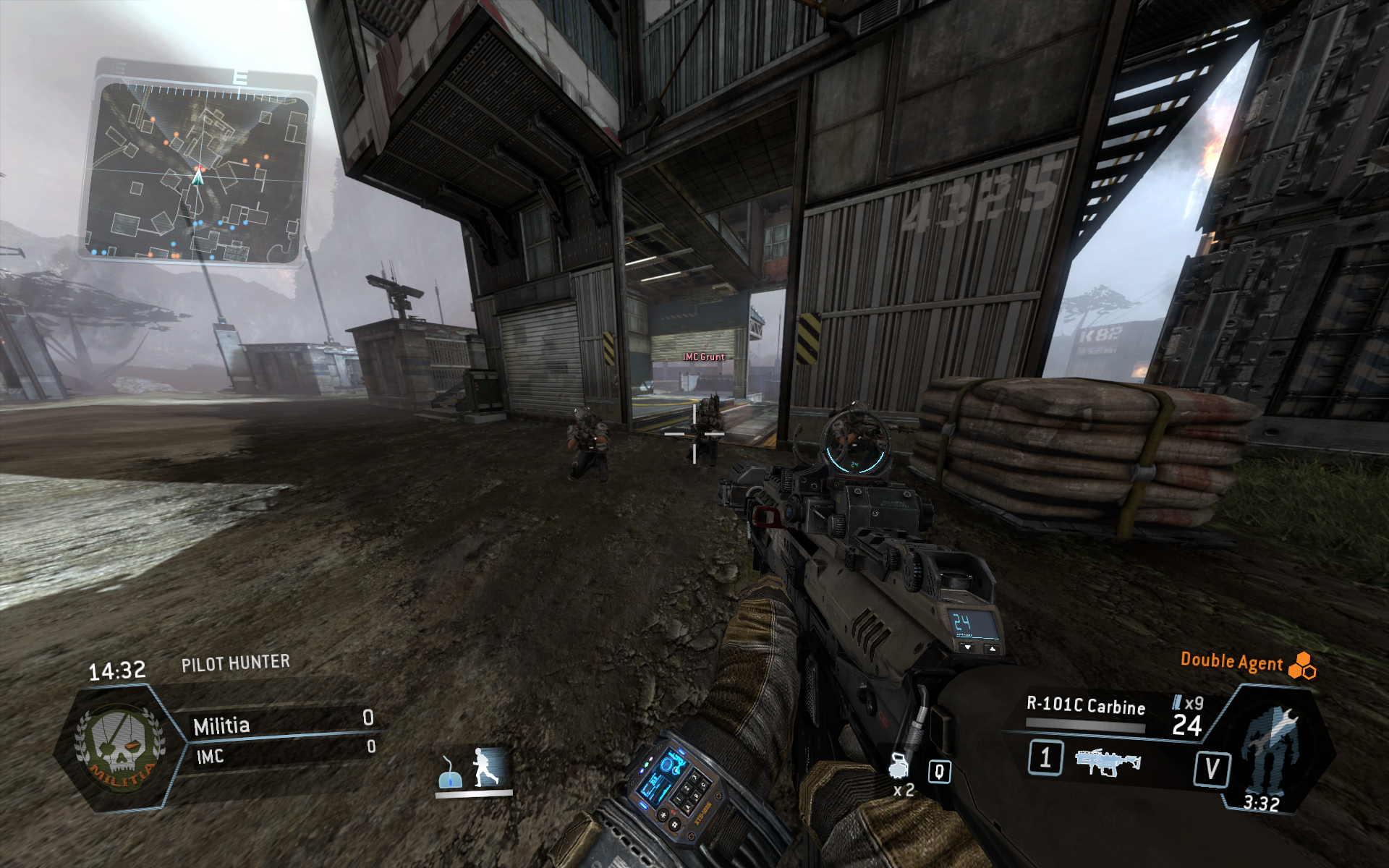
An example of 120° Pilot FOV, with the Weapon FOV increased to 84°
Backing up the old VPKs
In case something goes wrong, I suggest keeping the old VPKs. You’ll need to move them to use the new repacked one. A simple way is to create a new folder in the vpk directory, and then move all the client_mp_common.bsp.pak000_* VPKs into that new folder - you’ll need to move the _dir file for mp_common too, because we’ll be using a new one. If you have to repair and download these files again, you’ll have to download all of the client_mp_common.bsp.pak000_* files once more, and probably run the audio installer again too. It’s time consuming.
Repacking
To repack the VPK with the changes you’ve made your changes, select the icon furthest to the right in the icon toolbar in the VPK tool. To be honest, the folder picker for the VPK tool sucks, but there’s a work around for that. You can either press the Browse button and manually track down the folder you extracted the VPK to, or you can just grab a random folder for both of them to get the tool to accept that the two folders have been picked, then type in the location of the folder manually. Set the VPKFileName to the name of the old _dir file, up to pak000. Do not enter _000 or anything after it - that will be named by the VPK Tool on it’s own.
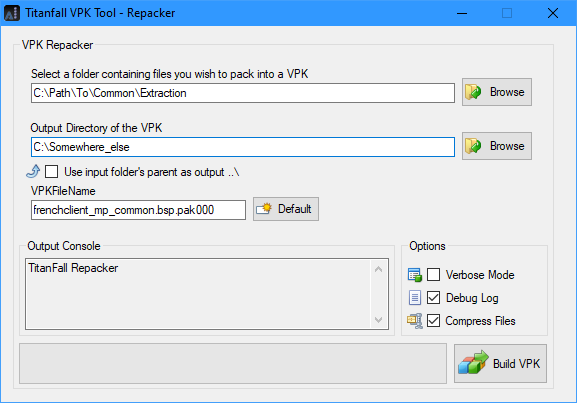
How your repack window will look when properly setup. Compression is optional.
Compression is used in Respawn’s VPKs; if you don’t mind waiting, I would suggest selecting Compression when packing a new VPK with the VPK Tool. Once you have the repacked VPK completed, you can place the new client_mp_common.bsp.pak000_000.vpk and language specific client_mp_common.bsp.pak000_dir.vpk file into the vpk directory in the Titanfall install, and launch the game.